If you have been preparing for months to pass a rigorous PMI or Scrum.org certification, the last thing you want is to have your exam session terminated because of a technical glitch. The shift to online proctored exams has opened unprecedented flexibility for project management and agile professionals around the world, but it also transfers the responsibility of the exam environment squarely onto your shoulders. To ace your remote PMI and Scrum.org exam, following a methodical tech requirements checklist is not optional, it is the foundation of your entire test day strategy. This guide will walk you through every hardware, software, environmental, and connectivity specification you need to know, demystifying the remote proctoring process so you can focus entirely on demonstrating your knowledge rather than troubleshooting your laptop.
Online proctored exams are serious affairs that recreate the rigor of a physical testing center inside your own home. Both the Project Management Institute and Scrum.org have partnered with specialized proctoring platforms, Pearson VUE and Certifior respectively, to ensure the integrity and security of their certifications. A live proctor or an AI-driven system constantly monitors your workspace, your screen activity, your keystrokes, and even your eyeball movements. Any deviation from the technical requirements can trigger a warning, a pause, or a complete revocation of your exam attempt. By understanding exactly what those requirements are and conducting a thorough pre-flight check, you eliminate the most common and preventable cause of exam failure. The following sections break down the comprehensive technical checklist you need to run through in the days leading up to your scheduled appointment.
Your Remote Exam Tech Checklist: Key Requirements Summarized
| Key Concept | Summary |
|---|---|
| Remote Proctoring | Online proctored exams for PMI and Scrum.org combine live human invigilators with AI-driven surveillance to continuously monitor your physical workspace, screen activity, and behavioral patterns, demanding full compliance with technical protocols. |
| Technical Compliance | Failure to satisfy the mandated technical requirements can result in immediate exam termination and forfeiture of fees, making a methodical pre-flight verification crucial to avoid costly rescheduling and loss of opportunity. |
| Computer Requirements | A fully functional laptop or desktop with a minimum of 4 GB RAM running Windows 10/11 or macOS 11.x is mandatory; Chromebooks, tablets, thin clients, and virtual machine environments are strictly prohibited. |
| Display Configuration | Only a single monitor may be active during the exam; any dual-monitor setup must be physically disconnected, and screen mirroring, projection, or extended desktop use is entirely disallowed. |
| Webcam Specifications | An external, movable webcam with a minimum resolution of 640x480 is required to perform the 360-degree room scan and to maintain uninterrupted visual supervision of your face, hands, and keyboard area. |
| Internet Reliability | A stable broadband connection with consistent low latency and adequate throughput is critical; even brief connectivity drops can trigger a proctor alert or lead to automatic session invalidation. |
| Exam Environment Integrity | Your testing space must be enclosed, quiet, and free of prohibited items such as smartwatches, mobile phones, headphones, and written notes, as confirmed by a mandatory 360-degree room scan before the exam begins. |
| Software Prerequisites | Candidates must install the official proctoring application from Pearson VUE or Certifior, systematically disable all pop-up blockers, and close any non-essential background applications that might compromise exam integrity. |
| Pre-Flight Readiness Check | Conducting the full system compatibility test several days in advance eliminates the most common configuration failures, ensuring that technical obstacles do not distract from your ability to demonstrate subject matter mastery. |
| Global Certification Access | Remote proctoring dissolves geographical and scheduling constraints, enabling candidates to pursue PMP, CAPM, PSM, or PSPO credentials from any private, internet-connected location with a professional-grade setup. |
Understanding the Online Proctored Exam Landscape for PMI and Scrum.org
Before you dive into the specific technical specifications, it helps to appreciate how remote proctoring actually functions for management certifications. The two organizations have taken slightly different paths, but the underlying principle is identical. A combination of real-time human proctors and artificial intelligence monitors your exam session through your webcam, your microphone, and your screen share. This system continuously records your behavior, flags suspicious movements, and verifies your identity multiple times. Familiarity with this process removes the intimidation factor and allows you to treat the proctor as a silent partner in your success.
Why Remote Proctoring Is the New Normal for Certification
The pandemic accelerated a trend that was already underway in professional credentialing. Geographic barriers, travel costs, and scheduling constraints made in-person test centers a limiting factor for many aspiring project managers and Scrum practitioners. Remote proctoring solved this by enabling candidates to sit for the PMP, CAPM, PSM, PSPO, and other certifications from any private location with a stable internet connection. The immediate feedback that many of these exams provide, combined with the ability to schedule a test on a weekend or late at night, has permanently reshaped the certification journey. For organizations, it means they can upskill their workforce without coordinating group travel or waiting for a local test window to open. For you, it means investing in a proper home setup pays dividends far beyond a single exam.
The Stakes of Technical Non-Compliance
Failing to meet the tech requirements checklist for your remote PMI or Scrum.org exam is not merely a inconvenience, it is a costly mistake. If your webcam disconnects, your internet dips below the minimum threshold, or your room fails a security scan, the proctor has the authority to terminate your session with no refund and no partial credit. You will have to pay again, wait for any mandatory cooling-off period, and reschedule, often weeks later. The emotional toll of being so close to the finish line only to be stopped by a misconfigured firewall or a forgotten smartwatch is immense. That is why a disciplined, checklist-driven approach to technical readiness is the smartest investment of your preparation time in the final hours before the exam.
Core Insights on Remote Proctoring
- Dual monitoring system
- Certification bodies such as PMI and Scrum.org deploy a layered monitoring approach that combines live human proctors with AI-driven analysis, continuously tracking your webcam, microphone, and screen activity to detect even subtle indicators of misconduct.
- New normal benefits
- By removing geographic and scheduling barriers, remote proctoring allows candidates to test from home at their convenience and receive immediate results, enabling faster certification and more agile career progression.
- High cost of non-compliance
- Even a brief technical disruption, such as a dropped webcam feed or bandwidth lag, can trigger an automatic exam termination with no refund, forcing a costly re-registration and a delay of several weeks before the next attempt.
The Core Hardware Requirements for a Smooth Exam Experience
The physical computer you use is the primary vehicle for your certification attempt, and both PMI and Scrum.org mandate specific minimums that exclude a surprising number of older machines. You do not need a high-end gaming rig, but you do need a stable, modern system that can run the proctoring software without hiccups. This section details what that looks like for processors, memory, operating systems, and peripherals. It is wise to check these specifications on the exact machine you plan to use several weeks before your exam date so you have time to borrow or purchase a compliant device if necessary.
Computer Specifications: Processor, RAM, and Operating System
The Pearson VUE platform that powers PMI exams explicitly requires a laptop or desktop computer manufactured within the last few years. Intel-based Macs running macOS 11.x (Big Sur) or higher are supported, while Windows users must have version 10 or later with the 64-bit architecture. ARM-based processors, such as those in recent Apple Silicon Macs, are also now supported on Pearson VUE as long as you are running a compatible operating system version. A minimum of 4GB of RAM is necessary, though 8GB or more is highly recommended to prevent the proctoring software from competing aggressively with other background processes. For Scrum.org exams taken through Certifior, the requirements are similarly modern, with a strong recommendation for the latest stable version of Chrome or Firefox and an operating system that still receives security updates. Trying to take a certification exam on a Chromebook, a tablet, or a virtual machine is not permitted across either platform, so do not assume that just because your device can open a browser it qualifies.
Screen and Display: Resolution, Multiple Monitors, and Visibility
Your screen is both your test interface and a part of the surveillance system, so there are strict rules about what is allowed. A single monitor is mandatory for both PMI and Scrum.org online proctored exams. If you have a dual-monitor desktop setup, you will need to physically disconnect the second screen and show the proctor the disconnected cable during the room scan. The minimum screen resolution is typically 1024x768, though any modern laptop far exceeds this. The critical element, however, is that the entire screen must be visible to the webcam without screen glare washing out the image. You will be asked to tilt your laptop screen or adjust an external monitor so that the proctor can see there is no material taped to the bezels. Furthermore, Pearson VUE does not allow you to project your screen to another device or use screen mirroring, so disable any wireless display technology before your check-in begins.
Webcam Quality and Positioning: The Proctor’s Window Into Your World
The webcam is the single piece of hardware that causes the most last-minute panic, so test it thoroughly days in advance. PMI’s system requires an external or built-in webcam with a minimum resolution of 640x480 and a frame rate that does not stutter. The camera must be movable, not permanently fixed in a position that points away from you. You will need to pick it up and rotate it 360 degrees during the room scan, so a freestanding laptop is the simplest arrangement. If you use a desktop with a clip-on webcam, ensure the cable is long enough to pan around your entire workspace, including under your desk. The proctor needs to see your face, your hands, your keyboard, and the area immediately around you throughout the exam. Position the webcam so that your head and shoulders are centered in the frame, and avoid having a bright window directly behind you, which will silhouette your face and make the proctor’s job harder. Scrum.org’s Certifior proctors have similar expectations, with a particular emphasis on a clear, unobstructed view of your entire face for the duration of the assessment.
Microphone and Audio: Hearing the Proctor Clearly
Audio communication is a two-way street during the exam, and your microphone must pick up your voice without significant distortion. A built-in laptop microphone is usually acceptable, but if you are in a room with a prominent echo, you might consider a headset with a microphone. Note, however, that Pearson VUE expressly forbids over-the-ear or in-ear headsets during the PMI exam unless they are part of an approved accommodation. You are expected to use the computer’s internal speakers and microphone for the entirety of the test. The proctor may need to speak to you if they observe a potential issue, and you need to be able to respond immediately and clearly. For Scrum.org exams, the guidance is similar, with a strong preference for a quiet, closed room where ambient noise does not interfere with voice detection if the proctor uses automated listening tools. Before your exam day, record a short voice memo on the same machine and in the same room to verify that your audio is crisp and free of background hum.
The Software Stack: Browsers, Extensions, and System Settings
Even if your hardware is perfectly compliant, a misconfigured software environment can still derail your remote exam. The proctoring platforms require specific browser versions, temporary system-level permissions, and the removal of any applications that could be considered cheating aids. This part of the tech requirements checklist for acing your remote PMI and Scrum.org exam is often overlooked because candidates assume their normal work setup will be fine. Taking the time to create a clean, dedicated user profile on your computer can pay huge dividends in preventing pop-ups and notifications.
Approved Browsers and Version Compatibility
Pearson VUE’s online proctoring runs on a secure browser application called OnVUE, which you download and install prior to exam day. This application locks down your machine and prevents you from accessing other programs while the test is running. Before that, you will use a standard web browser such as Chrome, Edge, or Safari to log in and start the check-in process, but the test itself launches through the proprietary software. Scrum.org’s Certifior platform, on the other hand, launches the exam directly within your browser after you install a lightweight extension or run a browser compatibility check. Chrome is the most universally recommended browser, though Firefox and the latest version of Edge are also commonly supported. It is critical that you clear your browser cache, disable all non-essential extensions, and log out of any synchronized accounts that could trigger a notification. A browser that auto-fills passwords or displays calendar reminders can cause a sudden pop-up, which a proctor may interpret as an attempt to access prohibited material.
Downloading and Installing the Proctor Software
Both PMI and Scrum.org strongly recommend that you download and test the proctoring software at least 48 hours before your appointment. For Pearson VUE, you will receive a link to download the OnVUE application after you schedule your exam, and you can run a system test that simulates the exam environment. This test verifies your microphone, webcam, and internet speed against the required thresholds. For Certifior, Scrum.org provides a dedicated system check page where you can validate everything in one go. Do not wait until the hour before your exam to install these components. Operating system updates, missing dependencies, or antivirus conflicts can take time to resolve. A successful system test the night before is your green light to proceed with confidence.
Disabling Firewalls, Antivirus, and VPN That Interfere
The most common software barrier to a successful remote exam is an overeager corporate VPN or a firewall policy that blocks the proctoring server. If you are using a work-issued laptop, check with your IT department well in advance to see whether the machine can be temporarily removed from the corporate security umbrella or whether you should use a personal device instead. Many companies implement deep packet inspection that triggers the proctoring platform’s tampering detection. Personal laptops, too, can have antivirus software that quarantines the proctoring application. Temporarily disabling real-time scanning during the exam, and then re-enabling it afterward, is a safe and often recommended practice. You do not need to uninstall anything, simply pause protection for the duration of your session. As for VPNs, both PMI and Scrum.org require that you disconnect from any virtual private network and connect directly to your home internet. The IP address you use should match your geographic location, and VPNs introduce latency that can destabilize the video feed.
System Permissions and Accessibility Settings
Operating system-level permissions often trip up candidates who rush through the check-in. The proctoring application will ask for access to your camera, microphone, and screen recording. On macOS, you must go into System Preferences, Security & Privacy, and manually grant these permissions to the OnVUE or Certifior browser extension before they will function. Windows 10 and 11 have similar privacy settings under the Camera and Microphone sections. If you have enabled any accessibility features such as screen readers, magnifiers, or color filters, you must disclose them during the check-in process and, in many cases, submit a request for accommodations weeks before the exam. Simply using a built-in night light mode to reduce blue light can be problematic because it alters the color balance of your screen in a way that may look suspicious during the screen-share recording. Set all display settings back to their standard defaults for the exam window.
Core Insights on Software Exam Prep
- Browser and extension hygiene
- Even benign pop-ups can be misinterpreted as cheating attempts, so candidates must clear the browser cache, disable all extensions that are not explicitly required, and sign out of any browser-sync accounts before launching the exam.
- Proctor software installation timing
- Installing and testing the proctoring software at least 48 hours ahead of the exam provides a buffer to resolve operating system updates, missing runtime dependencies, and antivirus false positives that could otherwise delay the check-in.
- VPN and firewall interference
- Because corporate VPNs and strict firewalls can block proctoring connections or falsely trigger tampering detection, candidates should disconnect from all VPNs, use a direct home internet connection, and temporarily disable any real-time antivirus scanning for the duration of the exam.
- System permission configuration
- Before the check-in process can begin, candidates must manually grant the proctoring application permissions for camera, microphone, and screen recording in the operating system's privacy settings.
- Accessibility and display settings
- Candidates who rely on accessibility tools such as screen readers or color filters need to declare these accommodations to the testing body beforehand and reset any non-standard display settings to the factory defaults, thereby avoiding flagged anomalies in the recorded session.
The Environment Setup: Creating a Distraction-Free Exam Space
The physical room in which you take your test is just as important as the machine you use. Online proctoring regulations are detailed and non-negotiable because they replicate the controlled conditions of a testing center. You will be asked to pan your webcam slowly around the entire room, showing the floor, the ceiling, all four walls, and the surface of your desk. Any violation of the environment rules can result in immediate dismissal, so preparing your space is a critical step on your tech requirements checklist for the remote PMI and Scrum.org exam.
Room Requirements: Four Walls, Closed Door, and Clean Desk
You must be alone in a quiet, enclosed room with a door that closes fully. Public spaces such as coffee shops, libraries, and coworking lounges are strictly prohibited. The room should be well-lit and free of excessive decorations, bookshelves, or monitors that could conceal notes. Your desk must be cleared of everything except your computer, your mouse, your keyboard, and a clear glass of water if permitted. Pearson VUE explicitly forbids any writing materials, including blank scratch paper. Instead, you will use a built-in digital whiteboard. Scrum.org’s Certifior also prohibits notes, textbooks, and electronic devices other than the testing computer. If you have a printer nearby, unplug it or cover it with a sheet. The goal is to create a workspace so barren and transparent that a proctor could scan it in seconds and be satisfied.
Lighting and Background: What the Proctor Sees
Good lighting serves a dual purpose. It helps the proctor see your face clearly, and it prevents your webcam from using automatic gain that washes out the image. Natural light from a window positioned in front of you or to the side is ideal, but avoid having a window directly behind you. Use a desk lamp if necessary to illuminate your face evenly. The wall behind you should be plain and uncluttered. A blank wall or a simple painted surface eliminates the risk that a proctor might mistake a poster for study material. Some candidates have been interrupted because family photos with text on them triggered a false positive on the secondary AI screening. Remove anything that contains words, diagrams, or numbers from the camera’s field of view, including sticky notes on the monitor bezel.
Managing Noise and Interruptions
Your certificate attempt requires total silence from your environment. Inform everyone in your home that you cannot be disturbed under any circumstances for the entire duration of the exam. Place a note on the door that reads “Exam in Progress, Do Not Enter.” Put your phone in another room, not just on silent, because even a vibrate can be picked up by a sensitive microphone. If you live on a busy street, consider using a white noise machine positioned away from the microphone, but be aware that the proctor may question any consistent background noise. The safest approach is to schedule your exam early in the morning or at a time when your neighborhood is quietest. Barking dogs, doorbells, and crying children have all been causes of exam cancellation in real-world scenarios.
Allowed and Prohibited Items on the Desk
Understanding exactly what you may have in arm’s reach eliminates anxiety during the room scan. For the PMI online proctored exam, the sole permitted items are your computer, an external mouse if you use one, a keyboard, and in some cases a non-smart external webcam. No watches, fitness trackers, or smart jewelry of any kind are allowed. You must remove them and show the proctor your bare wrists. A clear water glass is acceptable, but coffee mugs and other opaque containers are not. Tissue boxes must be plain and inspected. For Scrum.org assessments via Certifior, the rules similarly forbid any secondary devices, headphones, and notes. If you are unsure about an item, leave it in another room. The few seconds of extra comfort are not worth the risk of a violation flag.
Internet Connectivity: The Unseen Backbone of Your Exam
Your internet connection is the single most common point of failure in remote proctoring, and it is the one variable that can change from minute to minute. While you cannot control your ISP’s infrastructure, you can control your home network setup and the contingency plans you put in place. This section of the ace your remote PMI and Scrum.org exam tech requirements checklist focuses on how to stabilize and verify your connectivity so a brief wobble does not become a disaster.
Required Bandwidth and Speed Tests
The minimum internet speed for Pearson VUE is 1 Mbps upload, which is quite modest by modern standards. However, that is a bare minimum for a stable video feed, and it does not account for other devices on your network consuming bandwidth. A much safer target is 3 to 5 Mbps upload and at least the same for download. Certifior recommends a consistent connection with a latency below 200 milliseconds. Run a speed test using a tool like Ookla or the one built into the system check application at the exact time of day your exam is scheduled. Do this on multiple days to identify any periodic slowdowns caused by neighborhood usage patterns. If you discover a pattern where your speeds dip in the afternoon, schedule your test for a different time. Your internet does not need to be blazingly fast, but it does need to be consistent and free of packet loss.
Wired vs. Wireless: Which One Is More Reliable?
Whenever possible, connect your computer directly to your router using an Ethernet cable. A wired connection removes the variables of Wi-Fi interference, signal strength, and the occasional micro-dropout that causes your webcam to freeze. Many modern laptops lack an Ethernet port, in which case a USB to Ethernet adapter is a small, worthwhile investment. If you must use Wi-Fi, stay as physically close to the router as possible, and ask your household to pause any high-bandwidth activities like streaming 4K video or large downloads during your test window. Do not rely on a mobile hotspot unless you have completely exhausted all other options, because mobile networks are subject to sudden deprioritization and latency spikes that can break the real-time monitoring stream.
Dealing with Network Interruptions and Failover Plans
Even with excellent preparation, the unexpected can happen. Both Pearson VUE and Certifior do allow for brief interruptions, recognizing that the internet is not flawless. If your connection drops for a few seconds, the proctoring software will attempt to reconnect automatically, and your exam timer pauses in most cases. You will need to show your room again if the disruption is long enough to break the video feed entirely. If you completely lose power or experience a sustained outage, contact your exam provider immediately through their support chat, which you should have open on your phone in another room. Having a secondary internet source, such as a fully charged mobile hotspot from a different carrier configured and tested before exam day, can turn a catastrophic failure into a minor delay. It is a layer of insurance that very few candidates prepare, but it represents the ultimate expression of a robust technical checklist.
Essential Summary on Connectivity
- Minimum Speed Requirements
- Target an upload speed of at least 3 to 5 Mbps and latency under 200 milliseconds, and run speed tests at your scheduled exam time over several days to catch intermittent congestion that could disrupt your session.
- Wired Connection Advantage
- Connect your computer directly to the router with an Ethernet cable to avoid Wi-Fi interference and prevent brief disconnections. If your laptop has no Ethernet port, add a USB to Ethernet adapter for a stable wired link.
- Failover Plan Necessity
- Set up a backup internet connection, such as a fully charged mobile hotspot on a different cellular network, and pre-open your exam provider's live chat on a separate device so you can report extended outages instantly.
A Step-by-Step Tech Requirements Checklist for Your PMI and Scrum.org Exam Day
Now that you understand the principles behind each category, it is time to translate them into a concrete timeline of actions. This sequential guide breaks down exactly what you need to do 48 hours before, 24 hours before, one hour before, and during the check-in process itself. Treating your tech prep as a project with a clear work breakdown structure is second nature for a management professional, and it is the surest way to ace your remote PMI or Scrum.org exam without avoidable stress.
48 Hours Before the Exam: System Checks and Updates
With two days remaining, your first task is to run the full system compatibility test on the exact machine and network you will use. For PMI, log into your Pearson VUE account and navigate to your scheduled exam to launch the OnVUE system test. For Scrum.org, visit the Certifior system check page. Resolve any failures completely before moving to the next step. At this point, you should also fully update your operating system, browser, and any drivers. A pending Windows update that forces a restart mid-exam is a nightmare you can avoid right now. Restart your computer after these updates and run the system test again. Confirm that your photo identification is valid and that the name on your ID exactly matches the name you used when registering.
24 Hours Before the Exam: The Full Dress Rehearsal
The day before your exam, conduct a complete mock run at the same time your exam is scheduled. Clear your desk, set up your webcam, close the door, and go through every step of the check-in process as if it were real, short of actually launching a live exam. Record your room scan and watch it back to see if the lighting is adequate and whether any reflective surfaces are causing issues. Test your microphone by reading a paragraph aloud while wearing earplugs to check if your voice is clear. This is also the moment to lay out your Ethernet cable, tidy up the room, and confirm your family or housemates know your exact exam window. Remove any electronics from the room, including smart speakers that could be activated by voice. Finally, get a full night’s sleep, because technical readiness also depends on your mental sharpness.
1 Hour Before the Exam: Finalizing Your Environment
Start your computer and log in at least 60 minutes before your scheduled exam time. Perform a final speed test and close every application except the one you need for check-in. This includes messaging apps, cloud sync services like Dropbox or OneDrive, and virtual meeting software that could hijack your webcam. Open the system preferences and double-check that your microphone, camera, and screen recording permissions are granted to the proctoring app. Place your phone in another room, set to silent, with the exam provider’s support number written down and taped to the phone just in case. Use the restroom, get your water, and take a few calming breaths. The check-in process often opens 30 minutes before the official start time, so be ready to begin as soon as that window activates.
During the Check-In: Live Technical Verification
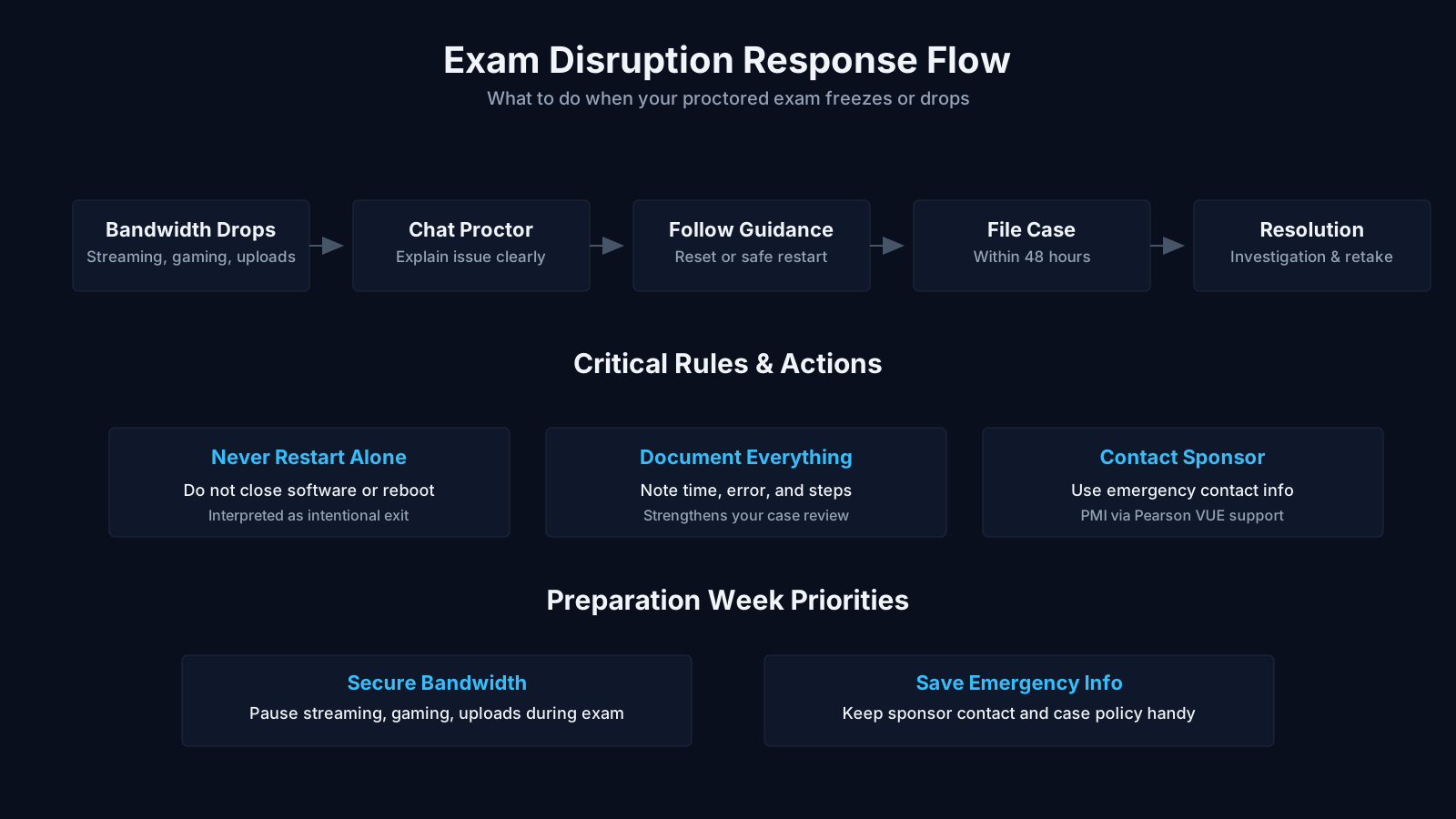
The check-in itself is a multi-step procedure that tests every piece of your tech checklist in real time. You will take a photo of your face, a photo of your ID, and then begin the room scan. The proctor may ask you to move items, adjust your camera angle, or unplug a secondary monitor if the cable looks suspicious. This is all normal. Follow their instructions calmly and methodically. The proctor is not trying to trick you; they are simply verifying that the secure test environment meets the established standards. Once the exam launches, do not touch your phone, do not get up from your chair, and do not look away from the screen for extended periods. Keep your face fully visible and your hands on or near your keyboard. If a technical issue arises during the exam, use the chat function within the proctoring interface to communicate with the proctor. Resist the urge to troubleshoot on your own, because moving windows or closing the application yourself can be interpreted as an attempt to terminate the session improperly.
Common Technical Pitfalls and How to Avoid Them
Even experienced professionals who have passed multiple certification exams can be caught off guard by subtle technical traps. Learning from the collective experience of thousands of candidates helps you anticipate and neutralize these threats before they materialize. The following scenarios represent the most frequently reported reasons for a failed check-in or a mid-exam interruption, and each has a straightforward prevention technique built into your tech requirements checklist.
Unexpected System Pop-ups and Notifications
One of the most jarring interruptions is the sudden appearance of a software update notification, an email preview, or a calendar alert over your test window. The proctoring software may flag this as a screen integrity violation. To avoid this, disable all notifications at the system level. On Windows, turn on Focus Assist to “Alarms only.” On macOS, enable Do Not Disturb with the setting “When mirroring or sharing the display” turned off as well, since the proctor shares your screen. Close any browser tabs that could refresh in the background and play an audio alert. Additionally, disable your email client and any messaging platforms from starting up automatically when the computer reboots. A clean boot with only essential services running is the gold standard.
Webcam Glitches and Lighting Failures
A webcam that works perfectly during a system test can still fail during the exam if the lighting in the room changes. As the sun moves, a previously shaded area can become a bright glare spot that obscures your face. Keep blinds closed and use consistent artificial lighting that you have tested at the same time of day. Some laptops have a privacy shutter that can slide closed accidentally when you adjust the screen. Double-check that your camera is unobstructed and that the lens is clean of smudges. If you use an external webcam, avoid cheap models that have a tendency to disconnect with slight cable movements. Tape the cable to your desk to prevent accidental unplugging if you shift in your seat.
Audio Echoes and Microphone Misconfigurations
A surprising number of proctoring interventions happen because the candidate’s microphone is picking up an echo from the proctor’s own voice through the speakers. This feedback loop is distracting and can impair the proctor’s ability to monitor. To solve this, keep your speaker volume at a moderate level and position yourself away from hard, reflective surfaces. If the proctor asks you to adjust your audio, do so through the system controls rather than by covering the microphone with your hand, which can muffle your words. A simple test is to open a voice recording app and play the typical proctor audio from another device while speaking; listen for whether your recording is clear and free of looped echoes.
Slow Internet and Disconnection Scenarios
When your connection occasionally stutters, the proctoring software will often display a warning icon or a brief buffering message. Do not panic. Allow the system to reconnect. If you are on Wi-Fi and a neighbor changes their wireless channel, you may experience a spike in latency. Having an Ethernet cable already connected provides instant fallback; simply switch your network interface without dramatic movements, and use the chat to inform the proctor that you are hardwiring. If the application freezes entirely, resist the urge to force-quit the program. Instead, wait a full minute for it to recover. If it does not, use your pre-written phone number to contact support from another room. The key is to remain calm and follow the predefined crisis plan rather than improvising.
Key Insights on Avoiding Technical Pitfalls
- Preventing Notification Interruptions
- To avoid screen integrity flags, deactivate all system-level notifications, enable Focus Assist, close background browser tabs, and prevent email and messaging applications from auto-starting.
- Managing Webcam and Lighting Issues
- Maintain a consistent, glare-free image by using artificial lighting, keeping blinds closed to block outside light, cleaning the camera lens, and securing external webcam cables with tape to avert accidental disconnections.
- Eliminating Audio Echo
- Reduce echo and feedback by setting speaker volume to a moderate level, sitting away from reflective hard surfaces, and verifying microphone clarity with a voice recording app before starting.
- Handling Internet Disconnections
- If a connection warning appears, stay calm, switch to a standby Ethernet cable immediately, and avoid force-quitting the exam platform; instead, allow the application to attempt recovery or call the prepared support number.
- Following a Predefined Crisis Plan
- Create a concrete, step-by-step contingency plan for technical problems, such as transitioning to a wired connection or dialing support, to ensure you follow a systematic response instead of improvising under pressure.
Specific Differences Between PMI and Scrum.org Online Exams
While the overall principles of remote proctoring are consistent, the two certification bodies have unique nuances in their technical execution. Understanding these differences allows you to tailor your checklist to the specific exam you are taking, avoiding generic assumptions that could land you in trouble. This section breaks down the distinct platforms and their individual requirements so you can prepare with surgical precision.
PMI’s Pearson VUE Online Proctoring Technical Checklist
The PMI online proctored exam is delivered through Pearson VUE’s OnVUE platform, which has become one of the most widely used remote test systems in the world. OnVUE requires that you run its proprietary secure browser, which locks down your machine completely. You cannot toggle back to your desktop, open a calculator, or access any browser bookmarks during the exam. The PMP, CAPM, PMI-ACP, and other PMI tests include a built-in digital whiteboard and a strikethrough tool to replace physical scratch paper. The system supports an optional break at the midpoint of longer exams like the PMP, but you must remain in your chair and within view of the webcam during that break. Pearson VUE has a strict policy against reading questions aloud or covering your mouth, as both actions can interfere with the monitoring process. A unique tip for PMI candidates is to log into the Pearson VUE website from a different browser than the one you will use for check-in, so that your session cookie does not conflict. Also, be aware that Pearson VUE’s mobile check-in option can be used to upload photos of your room before the exam, which can speed up the live proctor interaction.
Scrum.org’s ScrumMaster and Product Owner Exam Tech Specs
Scrum.org utilizes the Certifior platform for its proctored Professional Scrum Master and Professional Scrum Product Owner assessments. The exam itself is browser-based, which means you do not download a separate secure desktop application. Instead, you grant Certifior access to your screen and webcam via a browser extension or a lightweight plugin. The technical requirements are similar in spirit to Pearson VUE, but Certifior places a heavy emphasis on a clean, updated Chrome or Firefox installation without any development tools or debug modes active. The room scan process is just as thorough, and the proctor may ask you to use a mirror or your phone’s selfie camera to show the area behind your monitor, so keep a small mirror handy for this purpose. Scrum.org exams are often shorter, typically 60 to 90 minutes, which means any interruption eats into a larger fraction of your time. The platform expects you to remain seated and visible for the entire duration with no scheduled breaks. Because the exam is inside a regular browser tab, you must ensure that your browser’s full-screen mode is activated and that no other tabs are open. A final nuance is that Certifior sometimes uses AI-driven behavior analysis in addition to a live proctor, so avoid behaviors like reading questions aloud or looking away from the screen frequently, even if you are just thinking.
Preparing Your Mind and Body Alongside the Tech
A flawless technical setup means nothing if your mental state is scattered and anxious. The remote proctoring experience is inherently more distracting than a traditional test center because you are conscious of the camera, the software, and the proctor’s unseen gaze. Integrating mental preparation into your overall exam readiness ensures that your nervous system does not sabotage your technical perfection.
Reducing Anxiety Through Technical Familiarity
Anxiety about technology often stems from a fear of the unknown. When you have completed a full dress rehearsal, you know exactly what the system test looks like, what the room scan entails, and how the proctor will communicate. This familiarity transforms the exam from a high-stakes technical mystery into a routine you have already executed. On exam day, spend five minutes before check-in simply sitting in your prepared chair, breathing deeply, and visualizing the flow of the experience. This is a proven performance psychology technique that aligns your cognitive state with your environment. The more mundane and predictable the technical check-in feels, the more mental bandwidth you free up for the actual test content.
The Role of Practice Exams in Technical Preparedness
Taking a full-length practice exam under simulated remote proctoring conditions is one of the most underutilized strategies in the management certification world. While you may not have access to the exact Pearson VUE or Certifior platform, you can build your own mock environment. Set up your webcam, start a recording, and go through a 180-question PMP simulator or a timed Scrum.org open assessment without stopping. The discomfort of knowing you are being recorded mirrors the proctor experience and highlights technical issues like overheating laptops, screen glare at a certain time of day, or chair noise that could be flagged. Treat this practice as a test of your system, not just your knowledge. If anything goes wrong technically during the simulation, you have time to fix it before it counts. This dress rehearsal represents the ultimate insurance policy for your certification investment.
Core Insights for Mental and Technical Readiness
- Anxiety stems from technical unknowns
- Conducting a full dress rehearsal strips away the ambiguity of technical procedures, turning the exam into a familiar routine and sharply reducing the anxiety that stems from unexpected login steps or interface quirks.
- Pre-exam visualization technique
- Spending five minutes before check-in sitting quietly, breathing deeply, and mentally rehearsing the entire exam flow aligns your mental state with the surroundings, freeing up valuable cognitive resources for the test content itself.
- Simulated proctoring practice exams
- Taking a full-length practice exam with the same remote proctoring setup, including recording yourself via webcam, uncovers issues like laptop overheating or screen glare well in advance of the actual test.
- Practice tests as system checks
- Using practice tests to stress-test your entire technical setup, rather than merely assessing knowledge, helps you catch and fix issues like chair squeaks or unstable internet connections before they derail your certification exam.
- Dress rehearsal as insurance policy
- A full dress rehearsal functions as a fail-safe for your certification investment, neutralizing the risk that test-day nerves will trigger technical missteps that derail your carefully prepared performance.
Conclusion: Mastering the Technical Side to Ace Your Remote Exam
Earning a PMI or Scrum.org certification is a career-defining achievement that demonstrates your mastery of modern management practices. Allowing that achievement to be jeopardized by a webcam misconfiguration or a forgotten smartwatch is a tragedy of process, not capability. By integrating a methodical tech requirements checklist into your study plan, you transform a potential source of failure into a predictable, controllable factor. The hardware, software, environment, and connectivity standards are not arbitrary hurdles; they are the scaffolding that upholds the integrity of your credential. When your computer runs cool, your internet stays stable, your room is quiet, and your preparation is transparent, you earn the right to focus entirely on the questions in front of you. That focus is the true goal of every step in this guide. Walk through your checklist with the same rigor you would apply to a project plan, and you will take your exam from a quiet, organized space where the only sound is your own confident reasoning. That is how you ace your remote PMI and Scrum.org exam and step forward into the next chapter of your professional journey.
Network Stability: Where Most Remote Exam Failures Actually Happen
Most candidates spend hours benchmarking their processor and RAM, then take the exam on whatever Wi-Fi happens to be available. That is a gamble. The proctoring stream is not a passive video call; it continuously uploads video, audio, and screen-share data while the exam engine downloads new questions and saves responses. A connection that handles streaming video perfectly well can still buckle under that bidirectional load, especially if someone else in the house starts a video call or cloud backup at the wrong moment. For PMI and Scrum.org exams alike, a wired Ethernet connection is the single highest-leverage upgrade you can make. If that is impossible, position yourself within clear line of sight of the router, disable band steering, and assign your laptop to the 5 GHz band rather than letting it drift to a congested 2.4 GHz frequency.
The interesting part is that raw download speed matters less than most people assume. Upload speed, packet loss, and latency are the metrics that determine whether your session stays alive. Run a test at the same time of day and from the same room you plan to use, not once from your office and once from the kitchen. You want consistent upload speed of at least 3 to 5 Mbps, not just a brief peak. Check for packet loss with a tool like PingPlotter or a simple extended ping to a stable host; anything above 1 percent over ten minutes should be treated as a red flag. Corporate VPNs, ad blockers, and privacy-focused DNS services can also interfere with the proctoring software. Disable them well before check-in. If your employer-provided laptop forces a VPN or a security agent, do not attempt to work around it with a personal hotspot mid-exam; borrow a cleaner machine instead.
One of the least discussed but most practical safeguards is to schedule your exam around your home network's real conditions. If your building shares bandwidth or your provider throttles during peak evening hours, take the exam on a weekday morning. Before you finalize the date, run the proctoring platform's own system test after installing the required browser extension and locking down background processes. Then reboot the machine. This clears memory leaks, pending updates, and resource-hungry tray applications that can trigger a false security flag. If you are still in the study phase, pairing this technical preparation with a structured PMP Certification Training Course helps you avoid the trap of knowing the material cold but losing time to a laptop you never fully vetted.
Advance Your Career with Professional Certification
Securing a professional project management certification distinguishes you in the job market by validating your ability to lead teams, manage risks, and deliver results. As a certified project manager , you gain a globally recognized credential that opens doors to senior roles and higher salaries, while organizations rely on these certified experts to streamline processes and drive measurable outcomes. The structured knowledge and proven methodologies you acquire directly contribute to project success and long-term business growth.
In an increasingly competitive business landscape, a professional product management certification equips you with validated frameworks for driving product strategy, customer discovery, and lifecycle execution. Earning a recognized product management certification signals to employers your commitment to best practices, while helping you avoid costly missteps and accelerate time-to-value for new features. Beyond individual career growth, certified product managers consistently align cross-functional teams around measurable outcomes, which directly boosts organizational agility and revenue. Ultimately, this credential serves as a tangible differentiator, enabling you to lead complex initiatives with confidence and earn the trust of stakeholders at every level.
Earning a professional HR management certification validates your expertise and commitment to the field, setting you apart in a competitive job market. For those seeking to build or advance their careers, structured HR training and certification programs equip you with modern strategies in talent acquisition, compliance, and employee engagement. This not only boosts your earning potential but also empowers you to drive organizational success by fostering a productive and legally compliant workplace. Ultimately, certified HR professionals are better prepared to align people strategies with business goals, making certification a worthwhile investment.